

The Steam store is a virtual paradise for gamers, offering an extensive collection of games and other community features. However, you may not be able to view any of that if Steam gets finicky and shows the Access Denied error message on your Windows computer. If you cannot access Steam due to this error, this guide will help.

Such disruptions can arise from various factors, including insufficient permissions, corrupted DNS cache, Windows Firewall settings, and more. If you don’t know what’s causing the problem, we have compiled a list of some effective solutions for fixing Steam’s Access Denied error on Windows.
1. Run Steam as an Administrator
A lack of relevant permissions could cause Steam to show the Access Denied error on your Windows computer. First, close the Steam client and open it again as an administrator.
Press Ctrl + Shift + Esc keyboard shortcut to open the Task Manager. In the Processes tab, right-click on Steam and select the End task option.

Right-click on the Steam app shortcut and select Run as administrator from the context menu.

If this method helps fix the error, you can set up Steam to always run with admin rights on your PC. Select the Steam app shortcut and press Alt + Enter keyboard shortcut to open its properties.
In the Steam Properties window, select the Compatibility tab. Then, tick the ‘Run this program as an administrator’ checkbox and hit Apply.

2. Sign Out and Sign Back In
Account-specific issues can block you from accessing Steam and result in similar errors. You can try signing out of the Steam app and signing back in to see if that helps.
Step 1: Open Steam on your PC, click on your username in the top right corner, and select ‘Sign out of account.’

Step 2: Select Confirm to proceed.

Sign back into your Steam account and see if you still get the Access Denied error.
3. Flush DNS Cache
Flushing the DNS (or Domain Name System) cache is another thing you can try when Steam displays the Access Denied error or fails to verify the CAPTCHA. That will help resolve any issues caused by outdated or corrupted DNS data.
To flush the DNS cache on Windows:
Step 1: Right-click on the Start icon and select Terminal (Admin) from the list.

Step 2: Select Yes when the User Account Control (UAC) prompt appears.

Step 3: Type ipconfig /flushdns in the console and hit Enter.

Restart your PC after this and check if the issue is still there.
4. Change DNS Server
Problems with the default DNS server offered by your internet service provider can also contribute to the Access Denied error in Steam. To avoid this, try using a different DNS server on Windows by following the steps below.
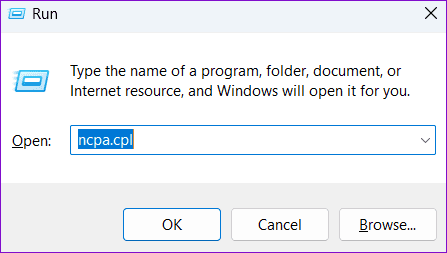
Step 1: Press the Windows + R keyboard shortcut to open the Run dialog box. In the Open field, type ncpa.cpl, and press Enter.
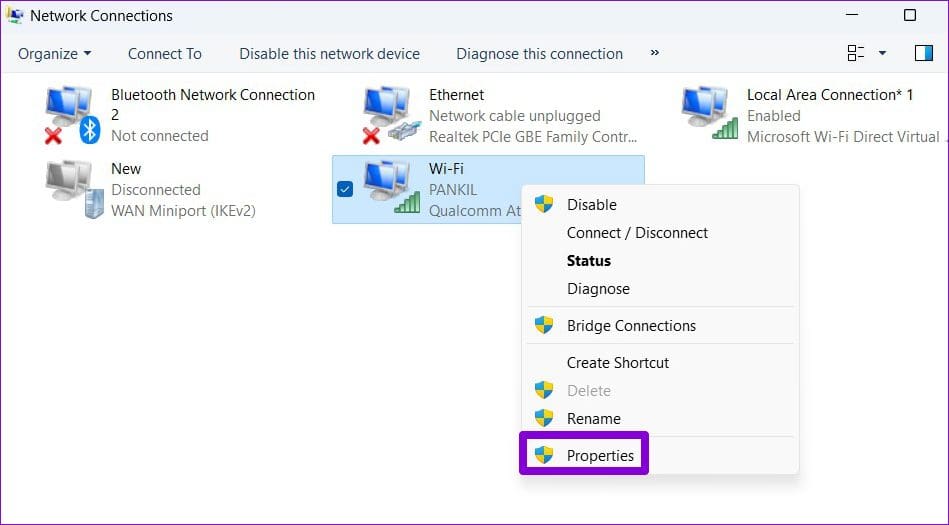
Step 2: In the Network Connections window, right-click on your internet connection and select Properties.
Step 3: Select Yes when the User Account Control (UAC) prompt appears.

Step 4: Double-click the ‘Internet Protocol Version 4 (TCP/IPv4)’ option.

Step 5: Select ‘Use the following DNS server addresses’ option. In the text fields next to the Preferred DNS Server and the Alternate DNS Server, enter 8.8.8.8 and 8.8.4.4, respectively. Then, click OK.

5. Connect or Disconnect VPN
Several users on Reddit reported fixing the Access Denied error in Steam by using a VPN connection on Windows. You can also give this method a shot.
On the other hand, if you are already using a VPN connection, try turning it off. Steam might restrict your access to the store if it identifies your network connection as suspicious.

6. Allow Steam Through the Windows Firewall
Steam may fail to connect to the internet and display unusual errors if the Windows Firewall is blocking it on your PC. To fix this, you need to allow Steam to run through the Windows Firewall.
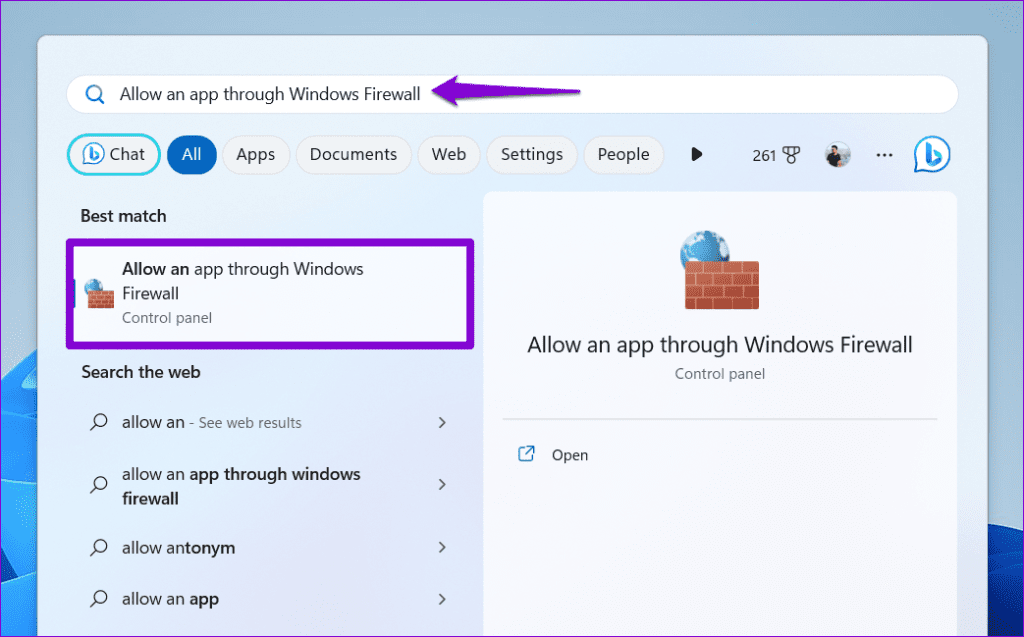
Step 1: Press the Windows + S keyboard shortcut to access the search menu. Type in allow an app through Windows Firewall and press Enter.
Step 2: Click the Change settings button.

Step 3: Select Yes when the User Account Control (UAC) prompt appears.

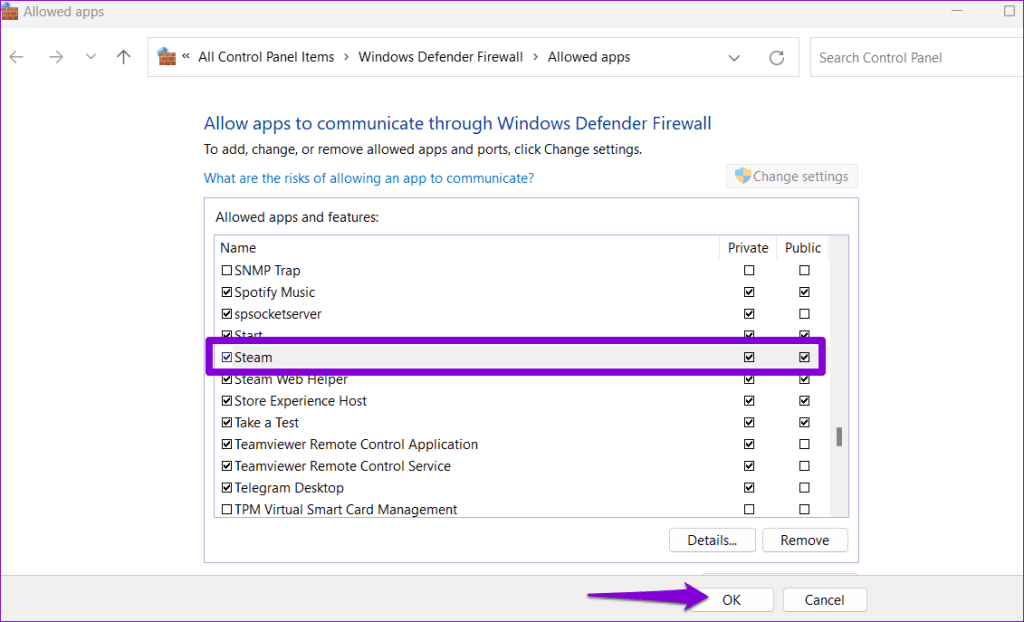
Step 4: Locate Steam on the list and tick the Private and Public checkboxes next to it. Then, click OK.
7. Check if Steam Is Down
Just like any other service, Steam is vulnerable to occasional server-side glitches. When this happens, Steam may exhibit abnormal behavior and fail to load. To overrule this possibility, you can visit Downdetector and verify the status of Steam’s servers.
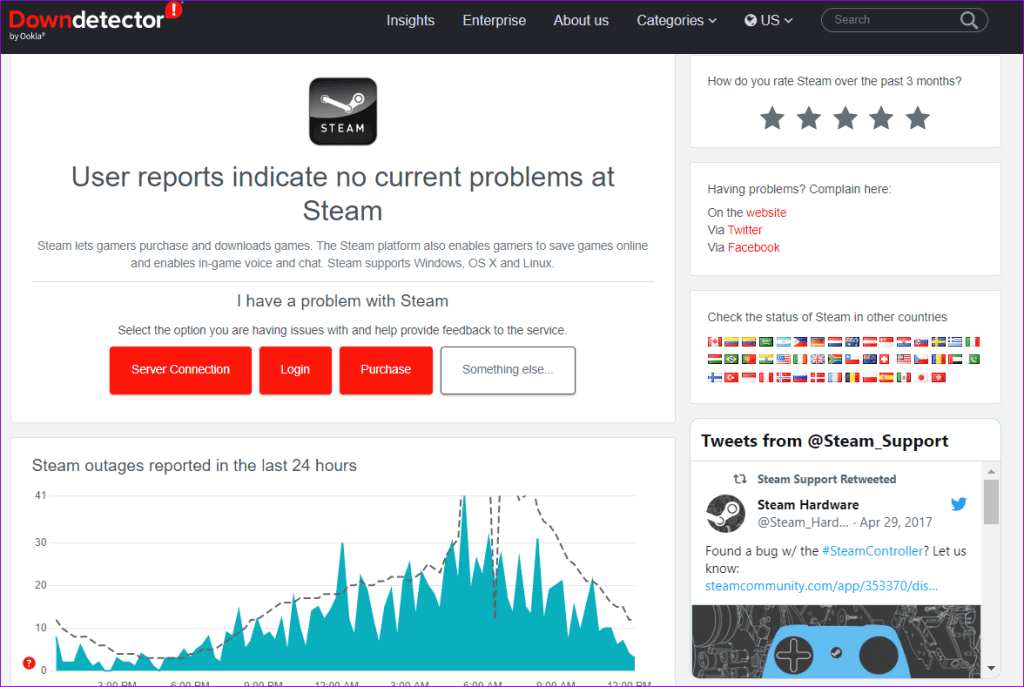
If others are experiencing similar issues, wait for Steam to fix the issue on its end. Rest assured, companies are usually quick to resolve server-related issues promptly. So, there is no need to worry, as the wait for a solution is typically brief.
From Frustration to Fun
One of the above tips should help fix the Access Denied error in Steam for Windows and restore your access. However, if nothing works, the issue could be related to a faulty installation or corrupt files. In that case, your best option is to uninstall Steam and install it again.
Was this helpful?
Last updated on 05 July, 2023
Read Next
 Top 13 Ways to Fix Folder Access Denied Error in Windows
Are you getting the 'access denied' error while trying to open a Windows folder?
Top 13 Ways to Fix Folder Access Denied Error in Windows
Are you getting the 'access denied' error while trying to open a Windows folder?
 7 Best Ways to Fix MIUI Dual Apps Permission Denied Error
MIUI's exclusive features like Second Space make it a delight to set up a new phone from scratch.
7 Best Ways to Fix MIUI Dual Apps Permission Denied Error
MIUI's exclusive features like Second Space make it a delight to set up a new phone from scratch.
 Top 9 Ways to Fix Steam Not Opening on Windows 10 Error
Every gamer needs Steam irrespectively of what other apps or platforms he/she plays on.
Top 9 Ways to Fix Steam Not Opening on Windows 10 Error
Every gamer needs Steam irrespectively of what other apps or platforms he/she plays on.
 Top 7 Ways to Fix the ‘Missing File Privileges’ Error in Steam for Windows
Do you keep getting the ‘missing file privileges’ error when opening or updating a game in Steam?
Top 7 Ways to Fix the ‘Missing File Privileges’ Error in Steam for Windows
Do you keep getting the ‘missing file privileges’ error when opening or updating a game in Steam?
 Top 7 Ways to Fix the Login Error Code E84 in Steam for Windows
It can be confusing if Steam keeps showing you the error code E84 and the ‘Something went wrong while attempting to sign you in’ error.
Top 7 Ways to Fix the Login Error Code E84 in Steam for Windows
It can be confusing if Steam keeps showing you the error code E84 and the ‘Something went wrong while attempting to sign you in’ error.
 Top 7 Ways to Fix Content File Locked Error in Steam for Windows
Ensuring your games are up to date with the latest patches is vital for an optimal gaming experience on Windows.
Top 7 Ways to Fix Content File Locked Error in Steam for Windows
Ensuring your games are up to date with the latest patches is vital for an optimal gaming experience on Windows.
 Top 7 Ways to Fix ‘Steam Stuck on Verifying Installation’ Error in Windows
Steam is the most popular game marketplace and even launched a portable gaming device SteamDeck in 2022.
Top 7 Ways to Fix ‘Steam Stuck on Verifying Installation’ Error in Windows
Steam is the most popular game marketplace and even launched a portable gaming device SteamDeck in 2022.
 Top 8 Ways to Fix Steam ‘Invalid Depot Configuration’ Error in Windows 11
Steam is the biggest game marketplace and has been around for two decades.
Top 8 Ways to Fix Steam ‘Invalid Depot Configuration’ Error in Windows 11
Steam is the biggest game marketplace and has been around for two decades.
The article above may contain affiliate links which help support Guiding Tech. The content remains unbiased and authentic and will never affect our editorial integrity.

