

Steam is the biggest game marketplace and has been around for two decades. Apart from the game-selling platform, it offers gaming-centric hardware like the popular Steam Deck. However, some users face issues downloading, installing, or running a game with the Steam ‘invalid depot configuration’ error.

There could be multiple reasons behind this Steam error, like an outdated Steam client, a corrupt DNS cache, or a misconfigured app file. We have compiled solutions to get Steam back on track again.
1. Manually Update Steam
Before trying other fixes, manually update Steam to the latest available version. Here’s how to do it:
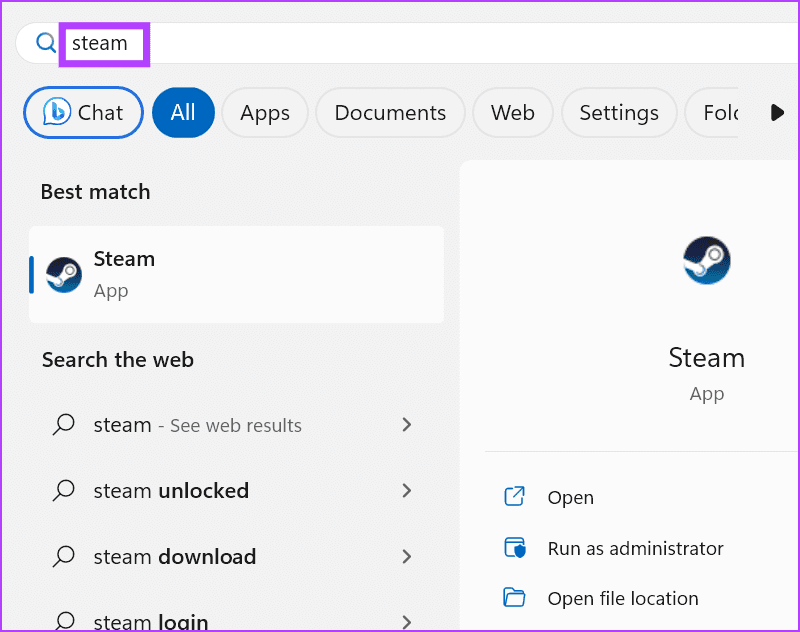
Step 1: Press the Windows key to open the Start menu, type Steam in the search bar, and press Enter.
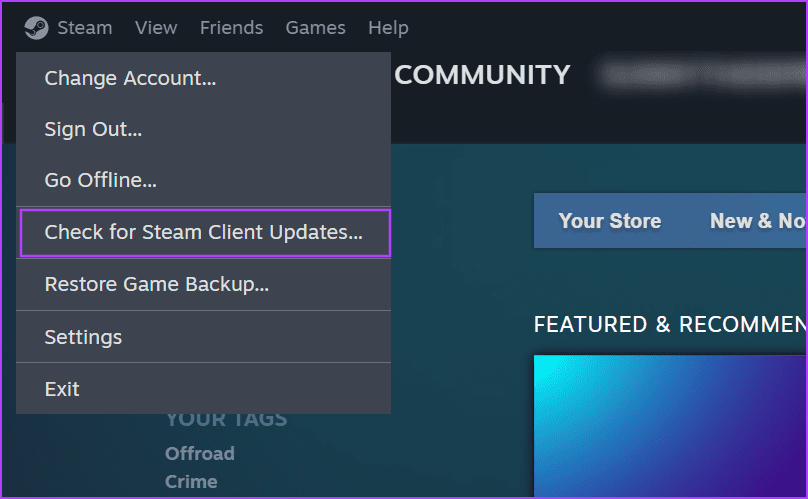
Step 2: Click on the Steam menu at the top-left corner.

Step 3: Click on the ‘Check for Steam Client Updates’ option from the context menu.
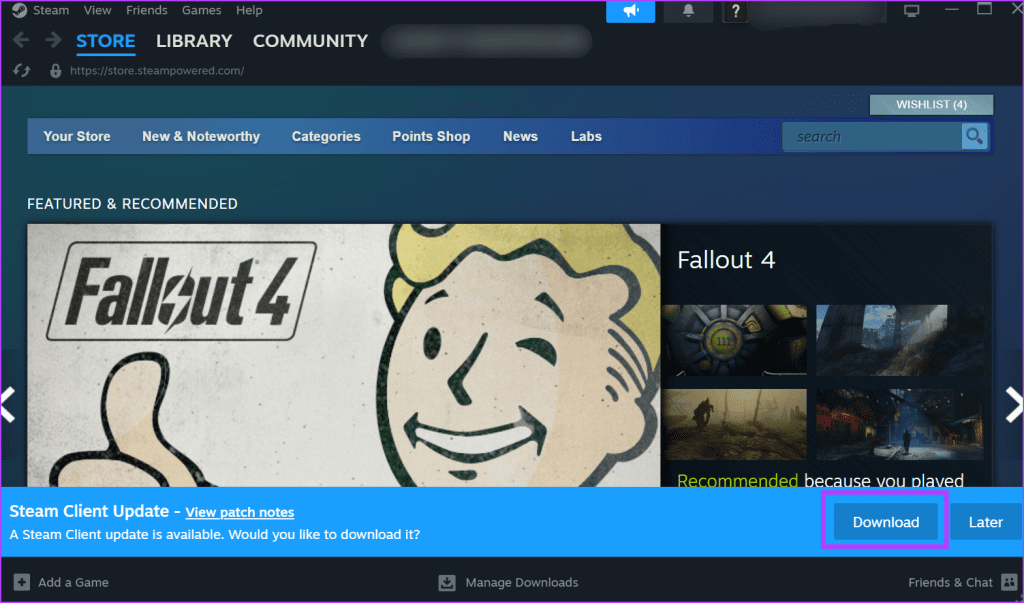
Step 4: Wait for the utility to find updates, if any. Click on the Download button.
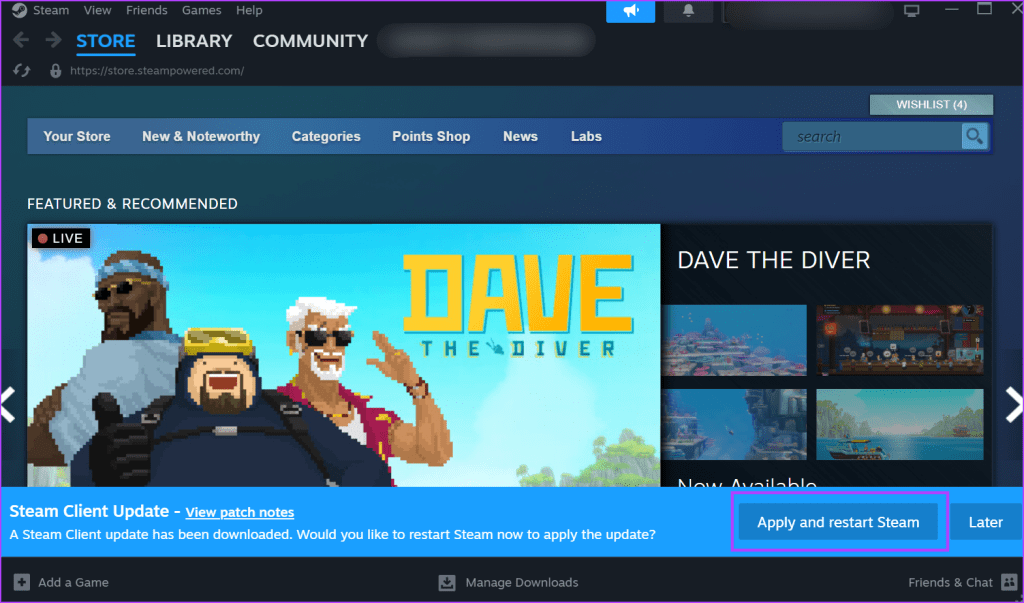
Step 5: Then, click on the ‘Apply and restart Steam’ button.
Try to install the game and check if the error pops up.
2. Terminate and Restart Steam From the Programs Folder
If updating the Steam client has no effect, you need to completely close Steam and its associated processes using Task Manager. After that, run Steam from its installation location. Here’s how to do it:
Step 1: Press the Ctrl + Shift + Esc keyboard shortcut to launch Task Manager.
Step 2: Click on the search bar at the top. Type steam in it and press Enter.
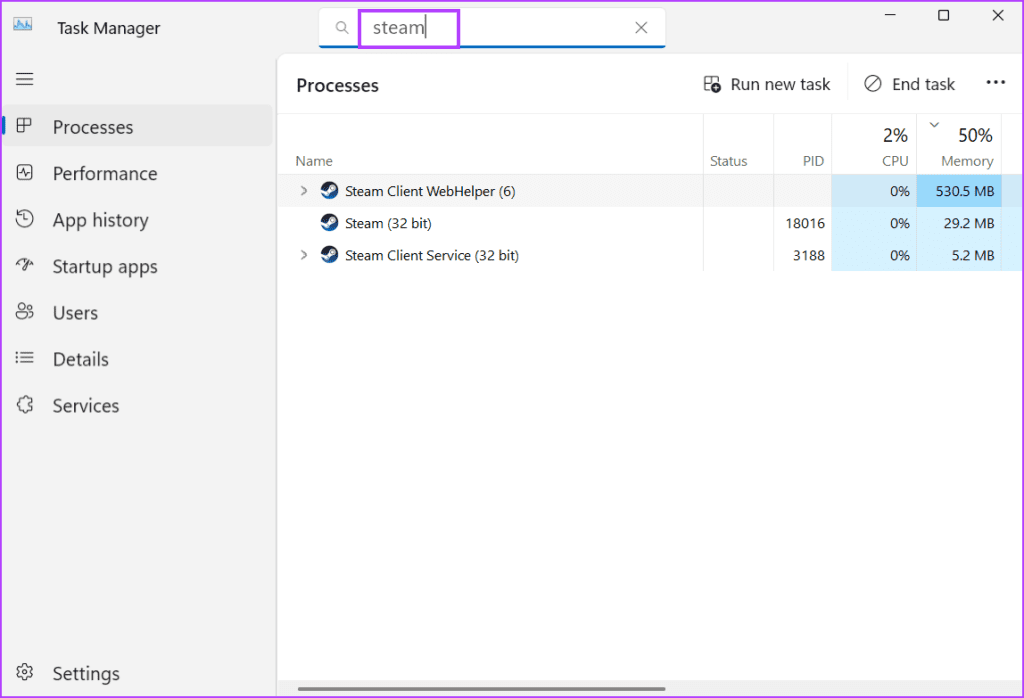
Step 3: Right-click on the Steam process and select the End Task option.

Step 4: Close the Task Manager.
Step 5: Press the Windows + E keyboard shortcut to open File Explorer.
Step 6: Go to the address bar at the top, paste the following path and press Enter:
C:\Program Files (x86)\Steam\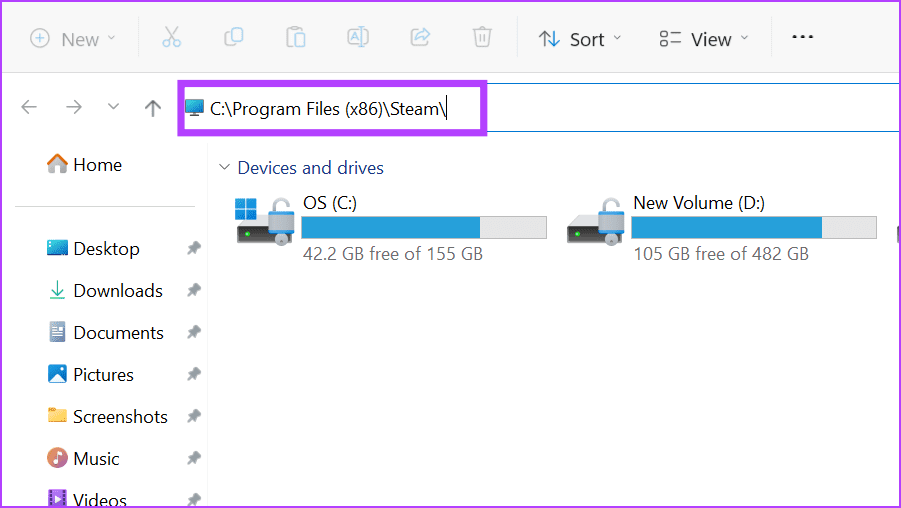
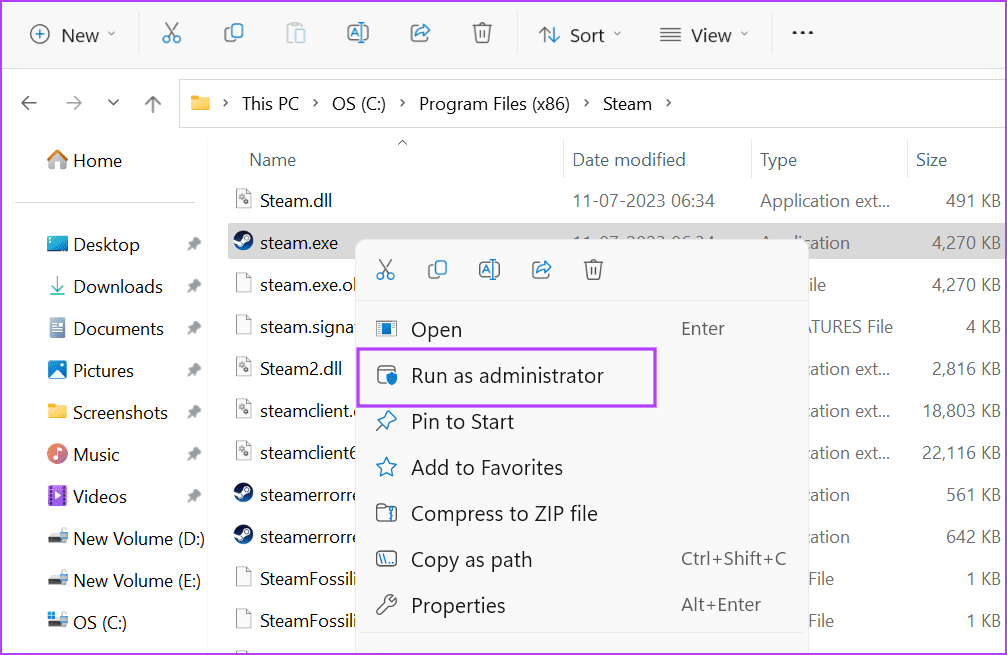
Step 7: Right-click on the ‘steam.exe’ file and select the Run as administrator option.
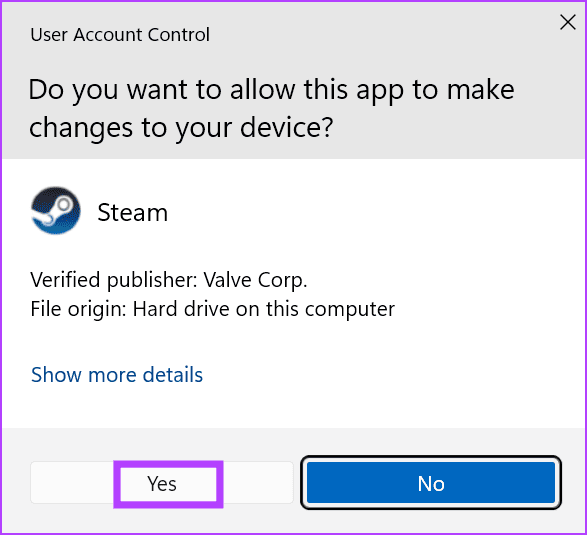
Step 8: When the User Account Control window appears, click on the Yes button.
Check if the ‘Invalid Depot Configuration’ error appears when you use Steam again.
3. Flush DNS Cache
DNS cache shortens the time to find the IP address of a particular URL but if it is very old or corrupt, Steam client can encounter issues while connecting to the internet. So, you may need to flush the system DNS cache. Here’s how to do it:
Step 1: Press the Windows + R keyboard shortcut to launch the Run dialog box.
Step 2: Type the following command in the text box and press Enter:
ipconfig /flushdns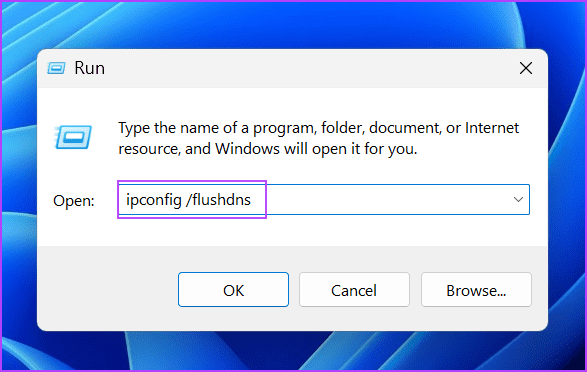
The Terminal app will flash for a second and flush the system DNS cache.
4. Change the Game Install Location
If you can’t install the game due to the ‘invalid depot configuration’ error in the C drive; change the install location. You can add a new Steam library folder and install the game there. Here’s how to do it:
Step 1: Press the Windows key to open the Start menu, type Steam in the search bar, and press Enter.
Step 2: Go to the top-left corner and click on Steam. Then click on the Settings option.

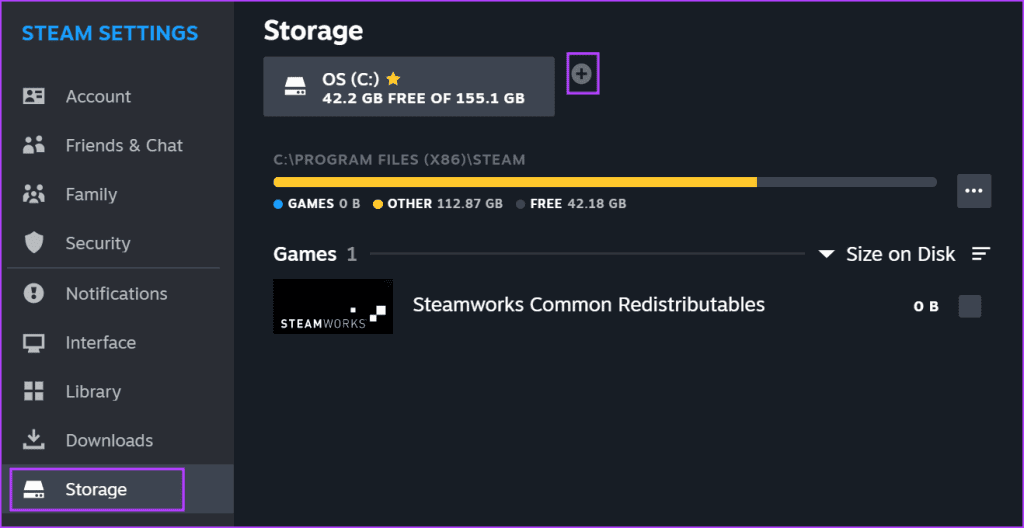
Step 3: Click on the Storage option in the left-hand side menu. Click on the plus icon to add a new drive.
Step 4: Click on the dropdown arrow and select a drive from the list.

Step 5: Click on the Add button.

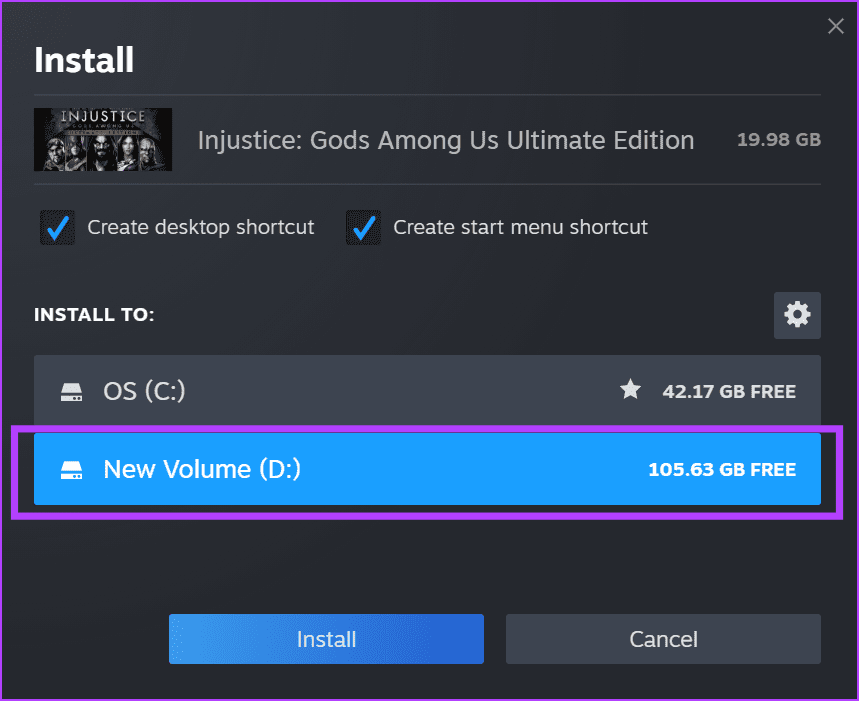
Step 6: Try to install a game and select the newly added drive in the install location window.
5. Opt-Out of Beta Releases
Beta releases grant you access to new features and improvements in Steam. But they can be unstable and buggy, so you must leave the Beta program if you face the said error. Repeat the following steps:
Step 1: Press the Windows key to open the Start menu, type Steam in the search bar, and press Enter.
Step 2: Go to the top-left corner and click on Steam. Then click on the Settings option.
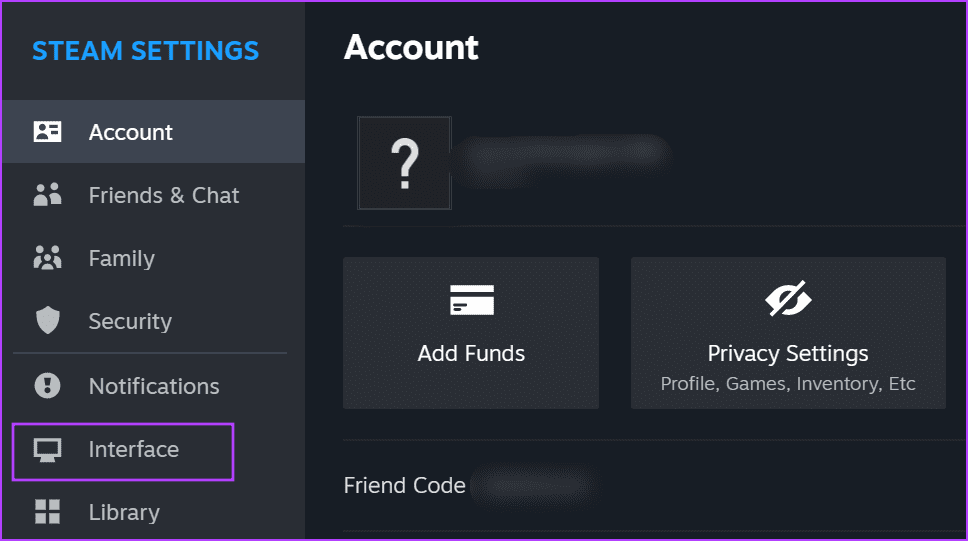
Step 3: Click on the Interface option in the vertical menu.
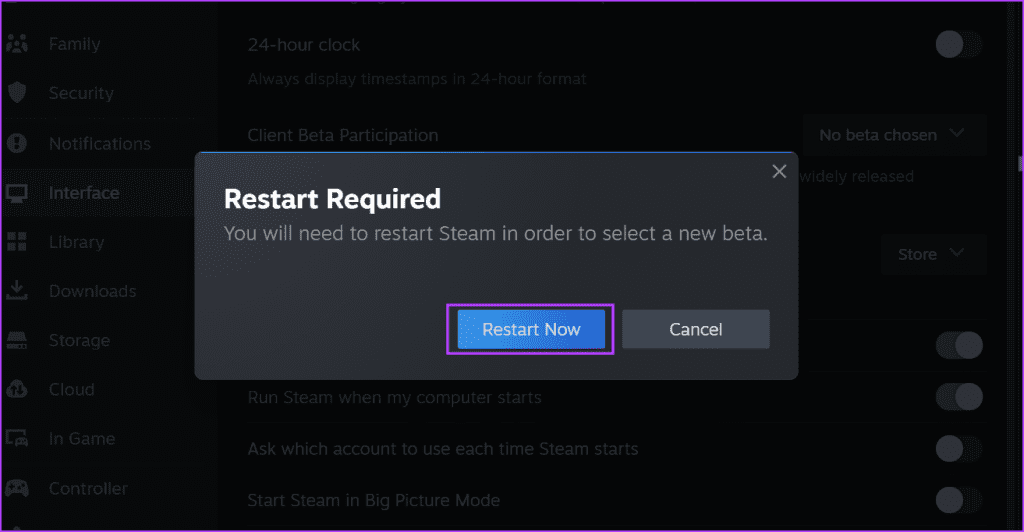
Step 4: Go to the Client Beta Participation option. Expand the drop-down list and click on the ‘No beta chosen’ option.

Step 5: Click on the Restart Now button.
6. Wipe Steam’s Existing Configuration
You can remove the existing Steam configuration files using a handy command. This doesn’t reset the app preferences or log you out of Steam, but it can fix issues with the Steam client. Before doing that, completely close Steam using Task Manager. Here’s how to do it:
Step 1: Press the Windows + R keyboard shortcut to launch the Run dialog box.
Step 2: Input the following command in the text box and press Enter:
steam://flushconfig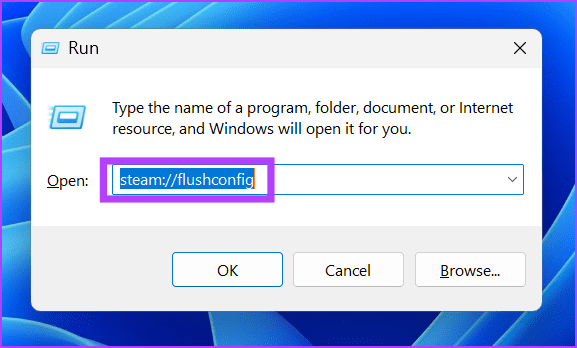
Steam will automatically launch and you will be logged into your account.
7. Edit the AppManifest File
Some users managed to fix the ‘Invalid Depot Configuration’ error in Steam by editing the AppManifest file present inside the Steamapps folder. Repeat the following steps:
Step 1: Press the Windows + E keyboard shortcut to open File Explorer.
Step 2: Navigate to the address bar at the top, paste the following path and press Enter:
C:\Program Files (x86)\Steam\steamapps\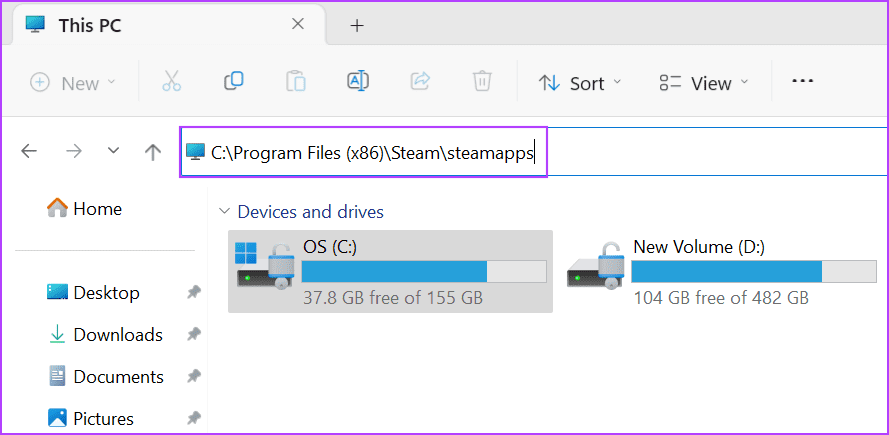
Step 3: Locate the file with .ACF file extension and right-click on it. Select the Open with option and then click on the Notepad option.

Step 4: Find the MountedDepots section in the Appmanifest file and select everything starting from “Mounted Depots” to the closing braces ( } ). Press the Delete key.

Step 5: Press the Ctrl + S keyboard shortcut to save the changes made to the file.
Step 6: Repeat the same process for other appmanifest files.
8. Reset Steam
Reinstalling Steam is the last resort but you will lose all your games. So, a better option is to reset Steam while retaining all the installed games using a folder deletion trick. Here’s how to do it:
Step 1: Press the Windows + E keyboard shortcut to open File Explorer.
Step 2: Click on the address bar at the top, paste the following path and press Enter:
C:\Program Files (x86)\Steam\
Step 3: Press the Ctrl + A keyboard shortcut to select everything. Hold the Ctrl key and then unselect the ‘steam.exe’ file and the steamapps folder by clicking on them.
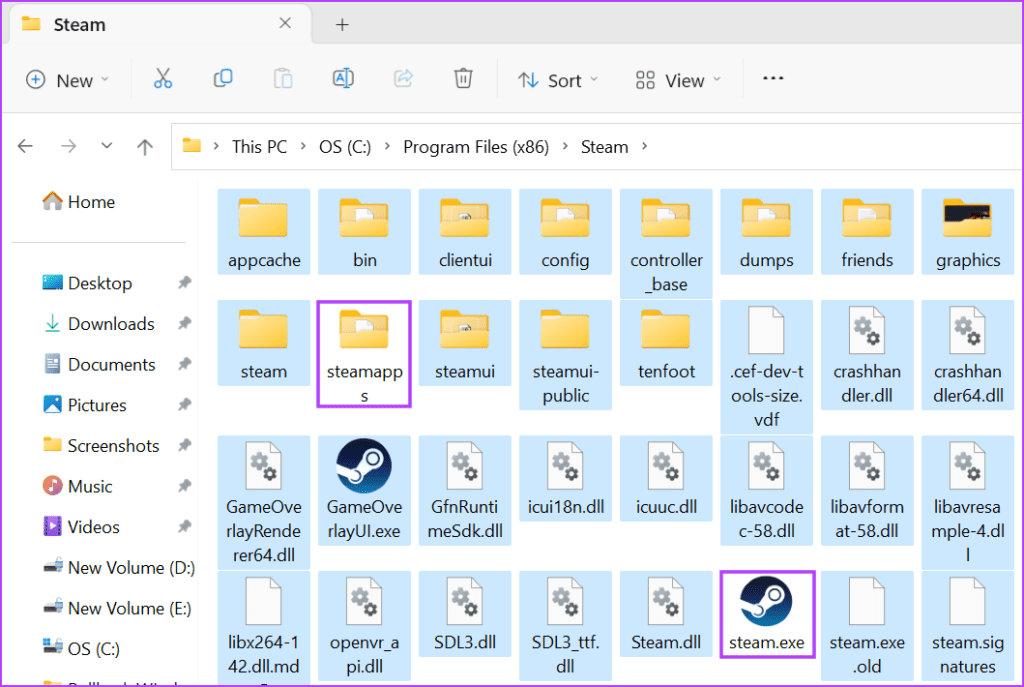
Step 4: Press the Delete key to remove the rest of the folders.
Step 5: Close the File Explorer window.
Step 6: Press the Windows key to open the Start menu, type Steam in the search bar, and press Enter.
Step 7: Steam will launch and start updating automatically. You will have to log in to your account.
Fix the Troublesome Steam Error
These were the eight methods to fix the Steam ‘invalid depot configuration’ error on Windows. Start by manually updating the Steam client and close and restart it from the installation folder. Flush your system DNS cache, op-out of Steam beta, and modify the appmanifest files. Lastly, remove everything from the Steam folder and force it to recreate the files again.
Was this helpful?
Last updated on 17 July, 2023
Read Next
 6 Best Ways to Fix Steam ‘Your Response to the CAPTCHA Appears to Be Invalid’ Error in Windows
Besides the large games library, Steam's popularity is due a strong security policy.
6 Best Ways to Fix Steam ‘Your Response to the CAPTCHA Appears to Be Invalid’ Error in Windows
Besides the large games library, Steam's popularity is due a strong security policy.
 Top 8 Ways to Fix Ethernet Doesn’t Have a Valid IP Configuration Error on Windows 11
Wi-Fi is a common means to connect your computer to the internet but if you want to experience the true speed of your internet connection, Ethernet is better.
Top 8 Ways to Fix Ethernet Doesn’t Have a Valid IP Configuration Error on Windows 11
Wi-Fi is a common means to connect your computer to the internet but if you want to experience the true speed of your internet connection, Ethernet is better.
 How to Fix Compressed Folder Is Invalid Error on Windows 11
Compressed folders ensure you can store much data in comparatively less space.
How to Fix Compressed Folder Is Invalid Error on Windows 11
Compressed folders ensure you can store much data in comparatively less space.
 7 Best Fixes for Computer Name Is Invalid Error on Windows 10
Calling your computer with a nickname does sound cool, and what makes it even more fun is giving it a name officially.
7 Best Fixes for Computer Name Is Invalid Error on Windows 10
Calling your computer with a nickname does sound cool, and what makes it even more fun is giving it a name officially.
 Top 7 Fixes for ‘Connection Problem or Invalid MMI Code’ Error on Android
Dialing MMI (Man-Machine Interface) codes on Android can help you uncover various device information and access network-specific features.
Top 7 Fixes for ‘Connection Problem or Invalid MMI Code’ Error on Android
Dialing MMI (Man-Machine Interface) codes on Android can help you uncover various device information and access network-specific features.
 Top 5 Ways to Fix Chrome Side-by-Side Configuration Is Incorrect in Windows
One of the infamous errors with Windows has been ‘side-by-side configuration is incorrect' when launching an app.
Top 5 Ways to Fix Chrome Side-by-Side Configuration Is Incorrect in Windows
One of the infamous errors with Windows has been ‘side-by-side configuration is incorrect' when launching an app.
 Top 8 Fixes for Wi-Fi Doesn’t Have a Valid IP Configuration Error on Windows 11
Is it annoying when you have to send an email or stream a movie, and your PC fails to connect to Wi-Fi?
Top 8 Fixes for Wi-Fi Doesn’t Have a Valid IP Configuration Error on Windows 11
Is it annoying when you have to send an email or stream a movie, and your PC fails to connect to Wi-Fi?
 Top 7 Ways to Fix Access Denied Error in Steam for Windows
The Steam store is a virtual paradise for gamers, offering an extensive collection of games and other community features.
Top 7 Ways to Fix Access Denied Error in Steam for Windows
The Steam store is a virtual paradise for gamers, offering an extensive collection of games and other community features.
The article above may contain affiliate links which help support Guiding Tech. The content remains unbiased and authentic and will never affect our editorial integrity.

