

Facebook Messenger has for iPad is fun to use when you get to enjoy the text, GIFs, videos, links, and other things on a larger screen. It becomes necessary app if you tend ot use it on your iPad to keep in touch with your family, friends, and other contacts. But, if it suddenly becomes unresponsive or not working on iPad, you’ll need to fix it.
You can always go back to using the web version when Facebook Messenger app stops working on iPad. But using a Messenger web version isn’t ideal for you lose features like push notifications, calls, and more. Instead, you should use the tricks below to fix Facebook Messenger not working on iPad.
1. Check Network Connection
You should first check the network connection on your iPad. If you have internet connectivity issues on iPad, Facebook Messenger won’t work.
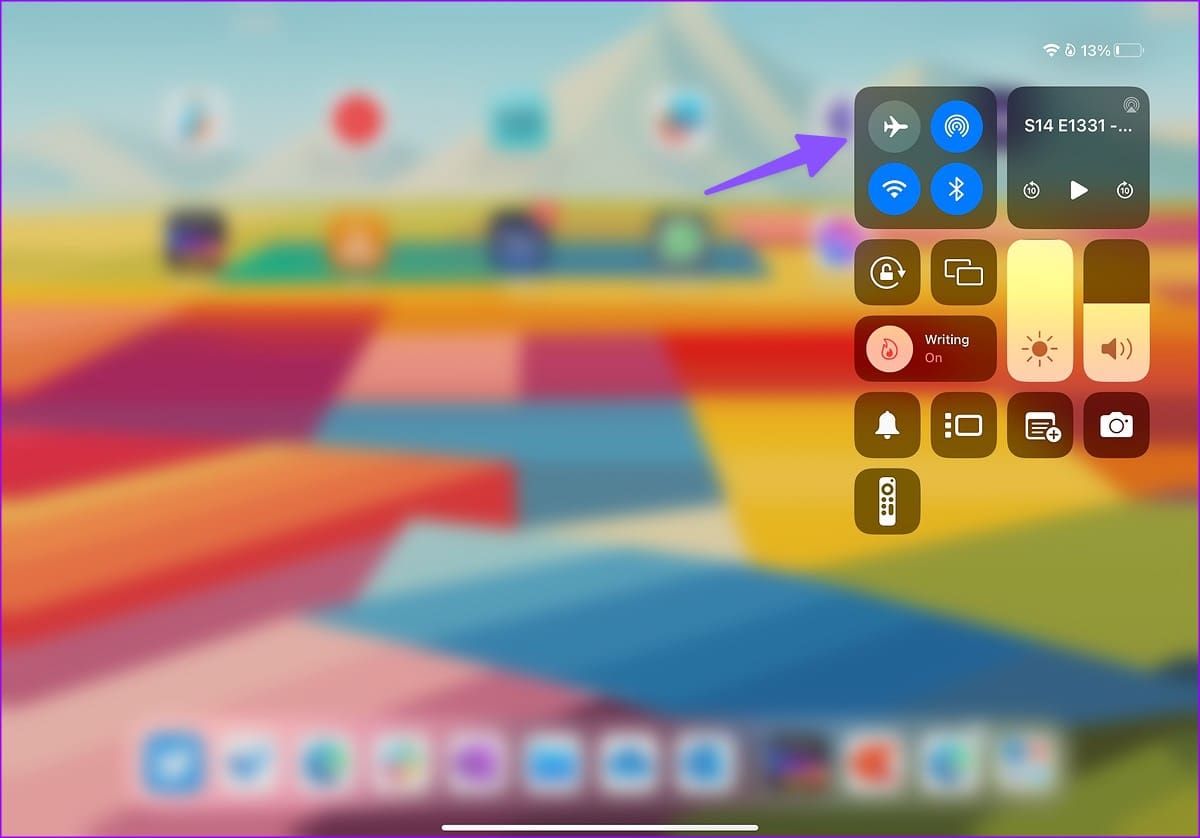
Step 1: Swipe down from the top-right corner. Open Control Center.
Step 2: Enable the Airplane mode and disable it after a few seconds.
Now, connect to a stable Wi-Fi network and run speed tests to check your internet connection’s reliability.
2. Enable Background App Refresh for Messenger
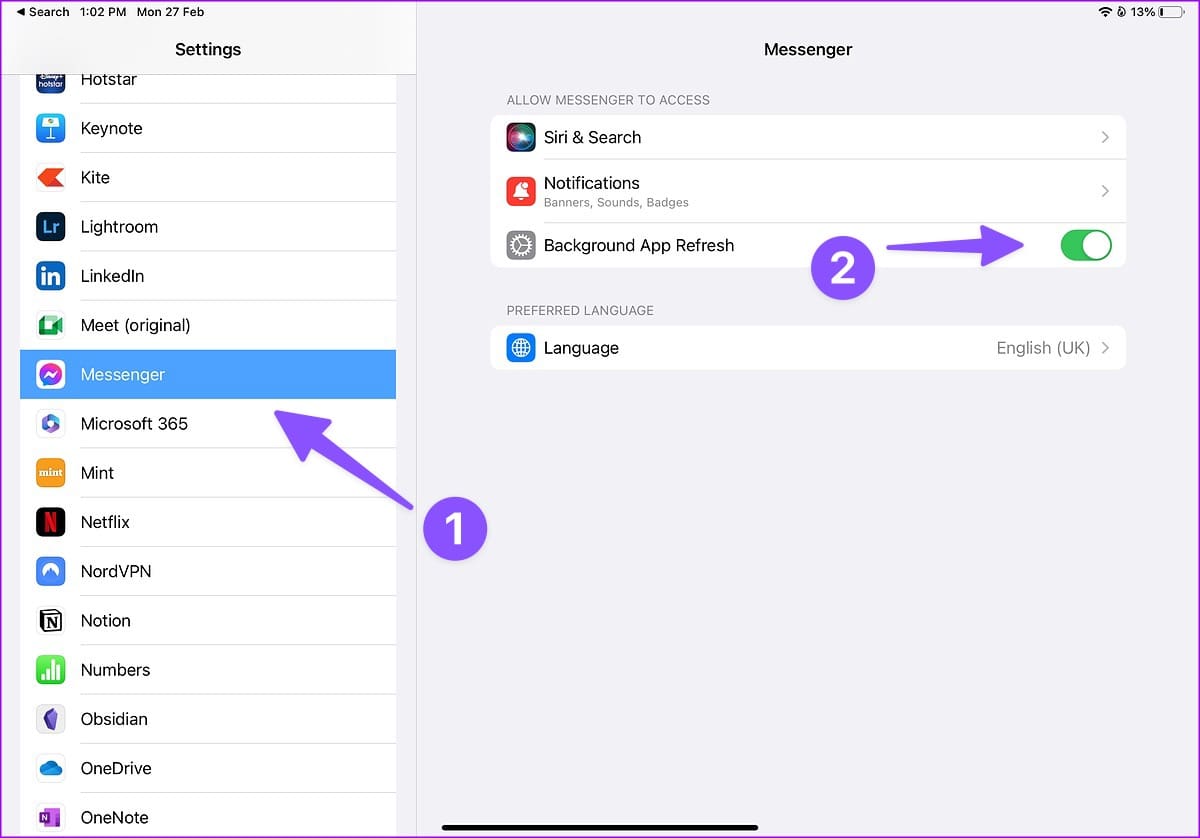
Did you disable background app refresh permission for Messenger? The app won’t work in the background to send instant notifications or call alerts. Follow the steps below enable the permission for Messenger.
Step 1: Open the Settings app on your iPad.
Step 2: Scroll to Messenger.
Step 3: Enable the ‘Background App Refresh’ toggle from the following menu.
3. Authenticate Your Account Again
Did you recently change your Facebook account password? You need to sign out from your current account and sign back in using the latest account details. Here’s what you need to do.
Step 1: Open the Settings app on your iPad.
Step 2: Select General menu and tap iPad Storage.

Step 3: Scroll to Messenger.
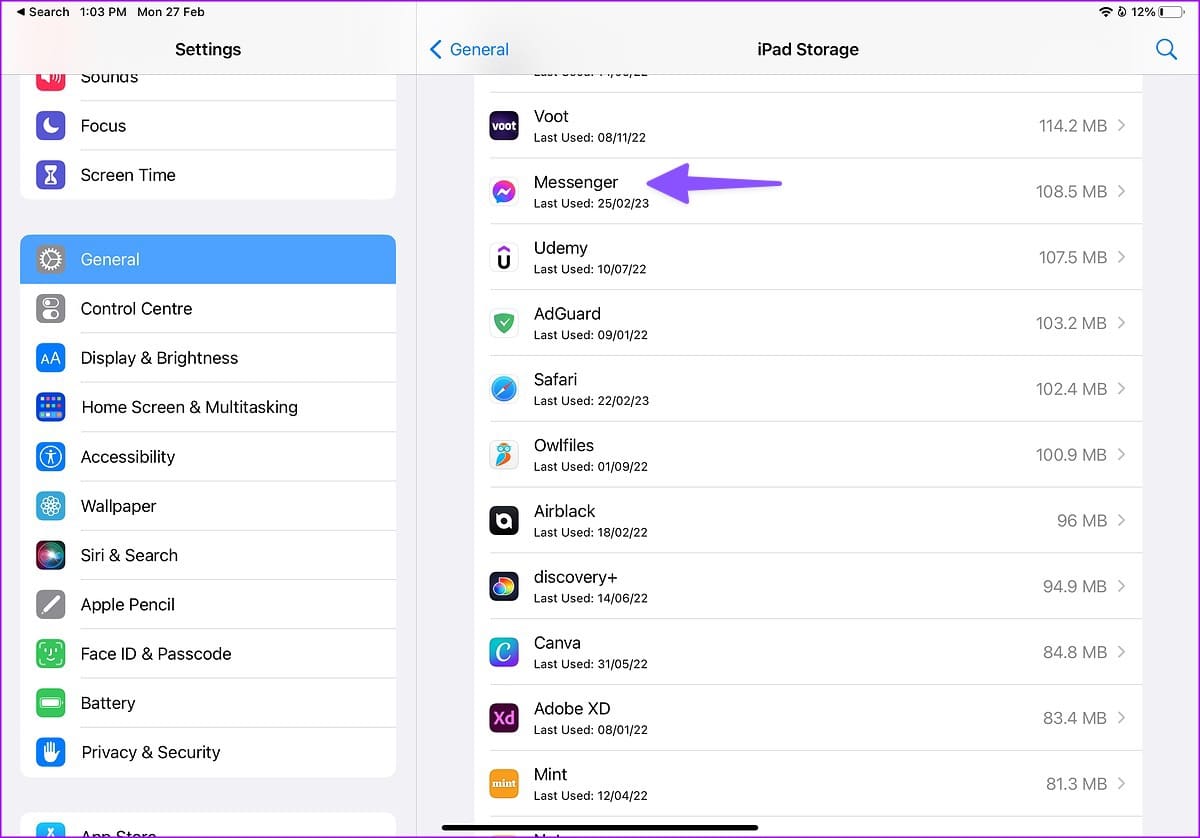
Step 4: Select ‘Delete App’ from the following menu.

It will delete the app and all related data from your iPad. Open the App Store and install Messenger again. Now, login with your updated account details.
4. Check Messenger Status
If Facebook servers are down, Messenger won’t work on your devices, including the iPad. You can visit Downdetector on the web and search for Messenger. If you notice high outage spikes and user comments confirming the same problem, wait for Facebook to resolve server-side issues.
Meanwhile, you can follow Facebook on social media platforms like Twitter to get the latest updates.
5. Check Notification Permission
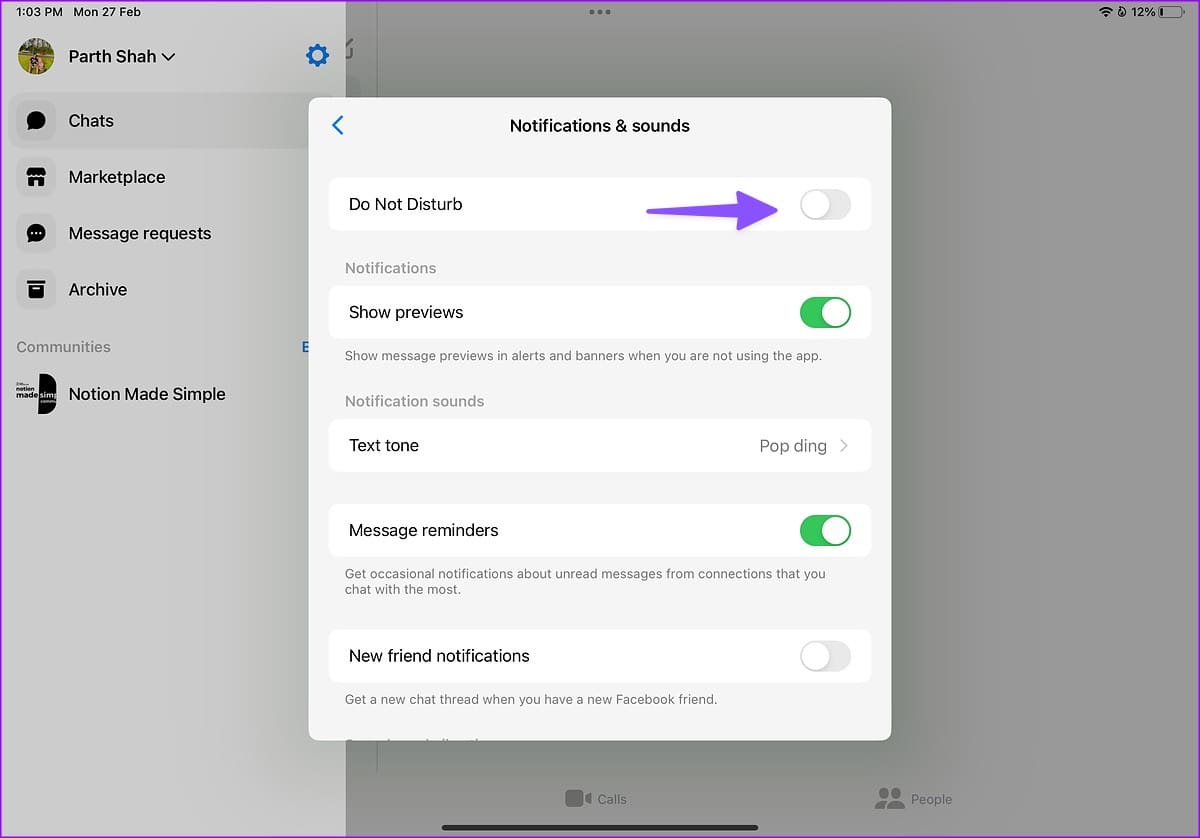
Messenger comes with a dedicated Do Not Disturb mode to stop alerts. If you have enabled it, Messenger notifications won’t work on iPad.
Step 1: Open the Messenger app on iPad.
Step 2: Tap the hamburger menu at the top-left corner and open Settings.

Step 3: Select ‘Notifications and sounds.’

Step 4: Disable the ‘Do Not Disturb’ toggle, enable ‘Show previews,’ and change text tone.
6. Update Messenger
Facebook regularly releases new Messenger updates to add features and fix bugs. An outdated Messenger app on your iPad may be the main culprit here. It’s time to update Messenger from the App Store on iPad.
Step 1: Open App Store on iPad.
Step 2: Select your account picture at the top-right corner.

Step 3: Install the pending Messenger update from the following menu.

7. Reinstall Messenger
You can delete Messenger from your iPad and install it again from the App Store.
Step 1: Long-press the Messenger app icon and select ‘Remove App.’

Step 2: Tap ‘Delete App’ to uninstall the app.

Install the app from the App Store.
8. Reset Network Settings
A wrong setting tweak on your iPad can lead to issues like Messenger not working. You should reset network settings on your iPad.
Step 1: Open the Settings app on iPad.
Step 2: Select General.
Step 3: Scroll to Transfer or Reset iPad.
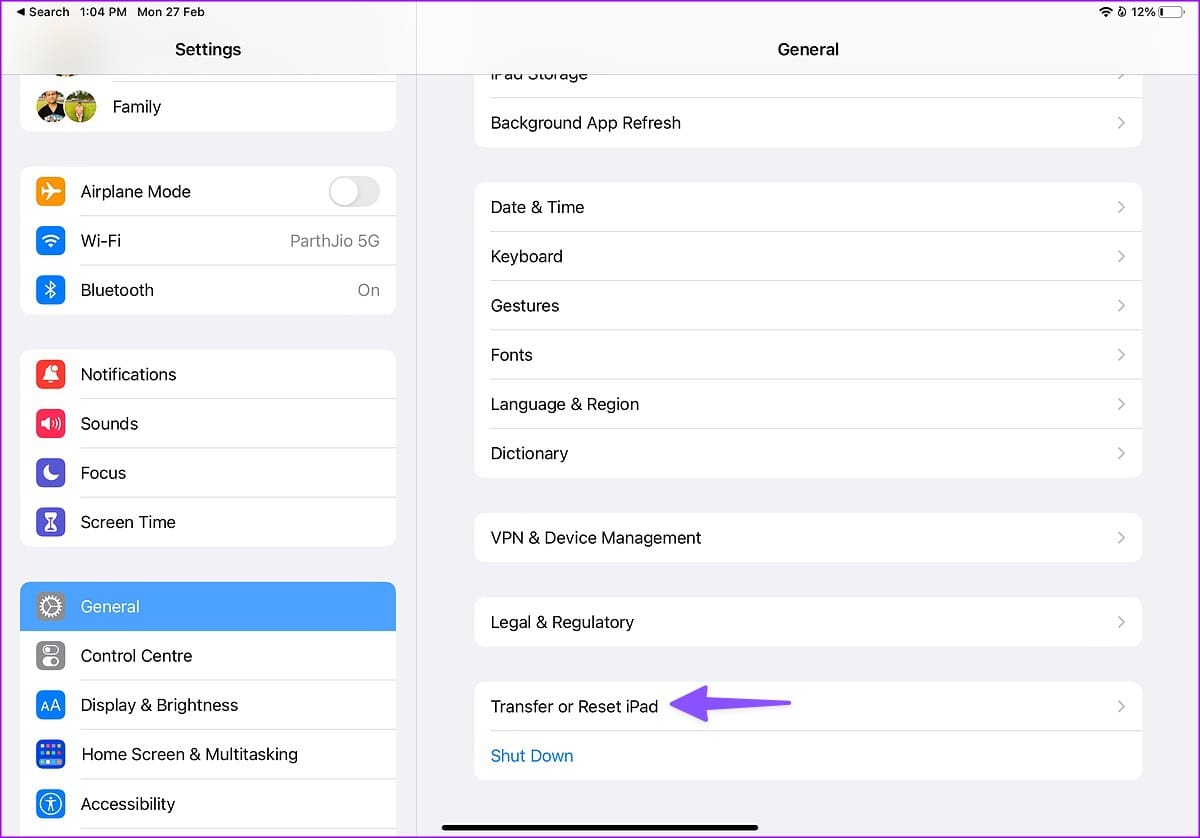
Step 4: Select Reset and tap Reset Network Settings.

If the trick doesn’t work, you’ll need to select ‘Reset All Settings’ from the same menu.
9. Update iPadOS
An outdated iPadOS can cause issues with installed apps on your iPad. You should install the latest iPadOS update on your iPad.
Step 1: OOpen the Settings app on iPad and select General from the left sidebar.
Step 2: Select ‘Software Update’ and install the pending OS build.

Access Messenger on iPad
Facebook has nailed the Messenger experience with a native app on iPad. But the app not working as expected can spoil the mood. Which trick worked for you to resolve Messenger not working on iPad problem? Share your findings in the comments below.
Was this helpful?
Last updated on 27 February, 2023
10 Comments
Leave a Reply
Read Next
 Top 8 Ways to Fix Facebook Messenger Not Working on the Desktop
While Facebook Messenger is feature-rich, it’s not a benchmark for reliability.
Top 8 Ways to Fix Facebook Messenger Not Working on the Desktop
While Facebook Messenger is feature-rich, it’s not a benchmark for reliability.
 Top 7 Ways to Fix Facebook Messenger Camera Not Working on Android and iPhone
Whether you want to capture photos and videos for your Messenger story or connect with your favorite people over a video call, Messenger’s camera is an important part of the
Top 7 Ways to Fix Facebook Messenger Camera Not Working on Android and iPhone
Whether you want to capture photos and videos for your Messenger story or connect with your favorite people over a video call, Messenger’s camera is an important part of the
 Top 7 Ways to Fix Facebook Messenger Notification Sound Not Working
Facebook Messenger is great for staying in touch with friends and family.
Top 7 Ways to Fix Facebook Messenger Notification Sound Not Working
Facebook Messenger is great for staying in touch with friends and family.
 Top 11 Ways to Fix Facebook Messenger Not Working on Mac
Facebook offers native Messenger apps on Windows and Mac.
Top 11 Ways to Fix Facebook Messenger Not Working on Mac
Facebook offers native Messenger apps on Windows and Mac.
 Top 9 Ways to Fix Microphone Not Working on Facebook Messenger
Although Messenger started as a text messaging app, Facebook eventually added support for voice calls, video meetings, and voice messages.
Top 9 Ways to Fix Microphone Not Working on Facebook Messenger
Although Messenger started as a text messaging app, Facebook eventually added support for voice calls, video meetings, and voice messages.
 Top 11 Ways to Fix Facebook Messenger Calls Not Working on iPhone and Android
Facebook Messenger offers voice and video calls to all users.
Top 11 Ways to Fix Facebook Messenger Calls Not Working on iPhone and Android
Facebook Messenger offers voice and video calls to all users.
 Top 11 Ways to Fix Facebook Messenger Notifications Not Working on Mobile
Notifications from the Messenger app are important as they help you stay updated with the messages and calls you receive.
Top 11 Ways to Fix Facebook Messenger Notifications Not Working on Mobile
Notifications from the Messenger app are important as they help you stay updated with the messages and calls you receive.
 Top 8 Ways to Fix Facebook Messenger Voice Messages Not Working
Exchanging voice messages can be way more convenient than typing out text while chatting.
Top 8 Ways to Fix Facebook Messenger Voice Messages Not Working
Exchanging voice messages can be way more convenient than typing out text while chatting.
The article above may contain affiliate links which help support Guiding Tech. The content remains unbiased and authentic and will never affect our editorial integrity.

I have tried everything that I can try but if I open messenger, then click on a video that someone sent, me it kicks me out to FB. FYI. I have a new iPad Air 5th generation. I am fit to be tied! Messenger works on my iPhone
Hi there, I have the same issue on my ipad 8th generation. It used to work and just recently quit. I have tried dozens of suggestions without success? Trying to contact HELP but also unsuccessful. Anyone else find a fix for this?
Same problem here. Tried everything till I’m blue in the face.
July 27, 2023
Sadly, I have the identical problem that you both have mentioned. Glad to see I am not going crazy …. well I ammm but ….. Problem: Opening FB video someone has sent to me in FB Messenger opens properly on my mobile but same video will not open on my Ipad Air in FB Messenger (just takes me to my last accessed screen in FB, it will not search for the video to play it) …it USED to work. I have checked every related setting, deleted and reinstalled both Facebook and Messenger apps since clearing the cache in the built-in FB browser did not work.
I even reset my network connection for what it was worth … no difference. Doing a software update on my ipad but I doubt it will make any difference.
My Twitter videos still open properly in Messenger but not the FB ones.
Software update to O/S 16.6 complete …… did not fix the problem ….. I give up …. hehe
Please let me know if anything works for you
I’m having the same problem. I can open Instagram videos but not FB videos. I also have an iPad 8th generation and I know I was able to open them before. I tried all the fixes noted above and still can’t open the links. Annoying. I can open them on my Android, just not the iPad.
Just purchased a new iPad generation 10. Same problem the videos won’t open on Facebook messenger. Apple says it’s a Facebook and messenger issue that they won’t communicate with each other????
I should have kept my older iPad.
Same problem as the rest of you. It used to work but now only tales me to Facebook.
I am having the exact same problem with my new iPad Air 5th Generation and I have tried everything as well. This is so frustrating. It works on my old iPad and also on iPhones. Also no luck contacting HELP – just a waste of time.
I’m so glad it’s not just me. I can view FB videos from my iPhone but not my iPad Air (4th generation). It will open instagram videos though. I have spent hours trying to figure this out.
The only thing that I haven’t tried is to set the iPad to factory settings. Pretty sure if I do that I’ll lose everything. Works fine on my iPhone ..so I’ll watch the videos on there.